
Skip to main contentSkip Navigation or Skip to Content
Thompson Rivers University
banner

Pay-Per-Print process

Connect to the network

Printing on campus is through the secure TRU network. To access your Pay-Per-Print account and print, you must be connected to eduroam (campus Wi-Fi) or the TRU VPN.

To use Pay-Per-Print, you must:

  • Be an active student (sign in with your TID).
  • Have enough funds in your Pay-Per-Print account.
  • Use the myTRUPrint queue when printing.
Connecting to campus Wi-Fi (eduroam)

Add credit

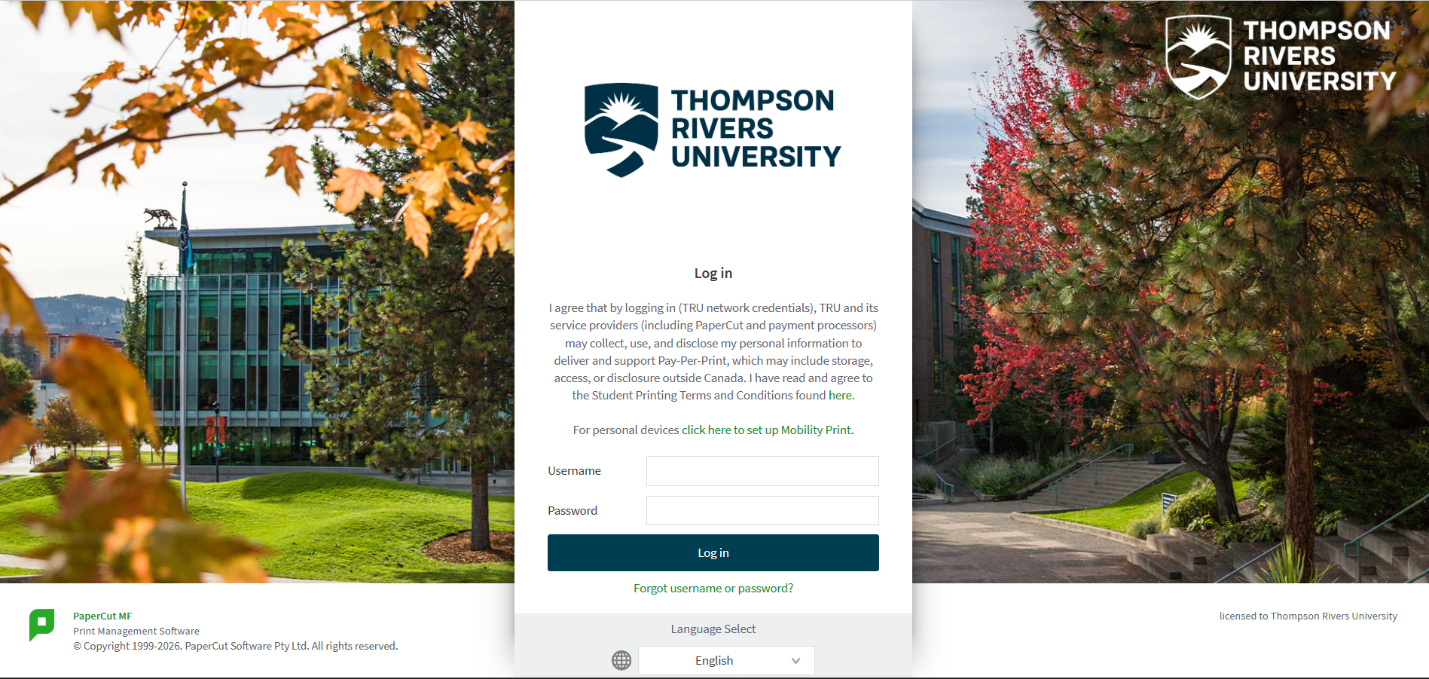
To add credit, sign in to the Pay-Per-Print portal using your TID and password. You must be connected to eduroam or the TRU VPN.

  1. Go to mytruprint.tru.ca/user.
  2. Log in using your TID number and password.
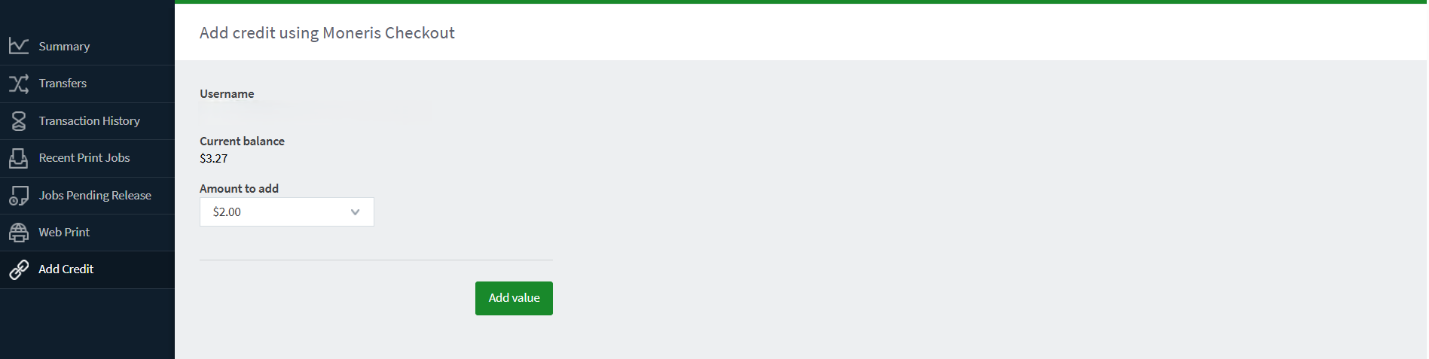
  3. Select Add Credit in the left navigation.
  4. Select the amount, then click Add Value.
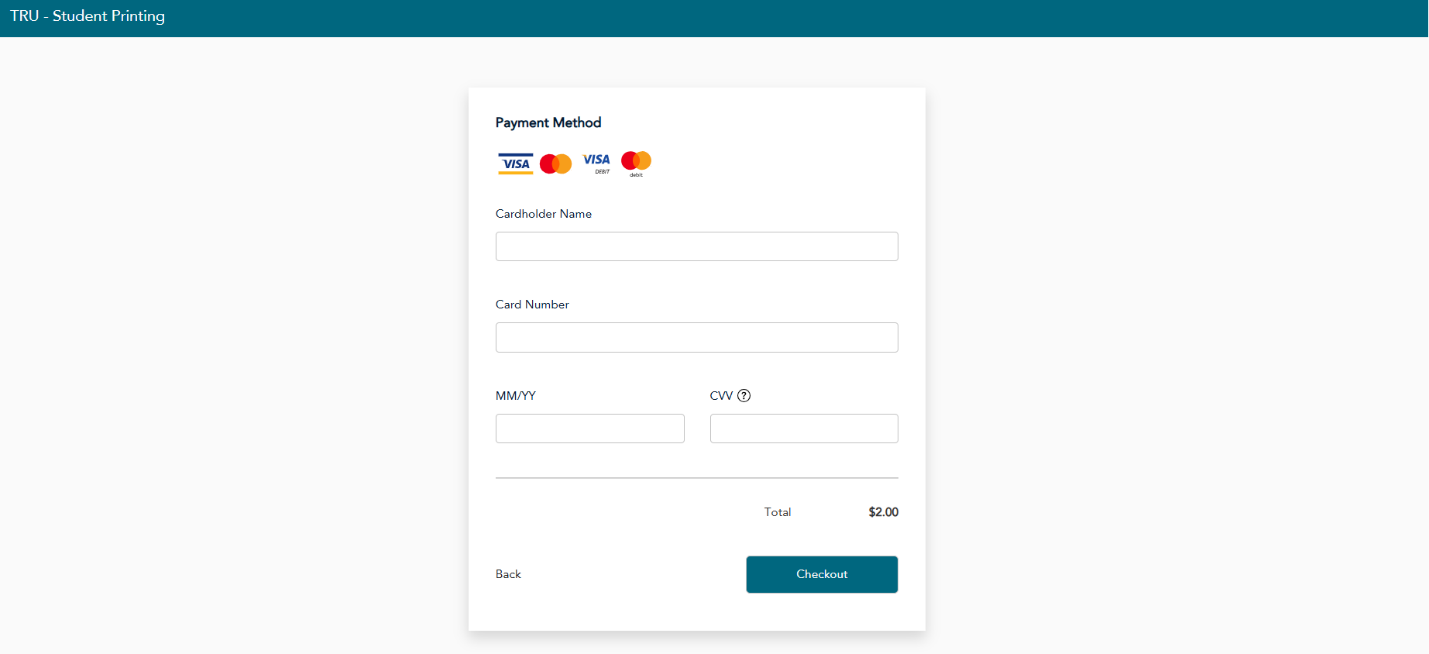
  5. Enter your payment method (Visa/Mastercard credit, or Visa/Mastercard debit).
  6. Confirm your updated balance and verify the amount on your receipt.
  7. Always log out when finished.
Open Pay-Per-Print portal

Web print

Printing from personal device – Web Print option

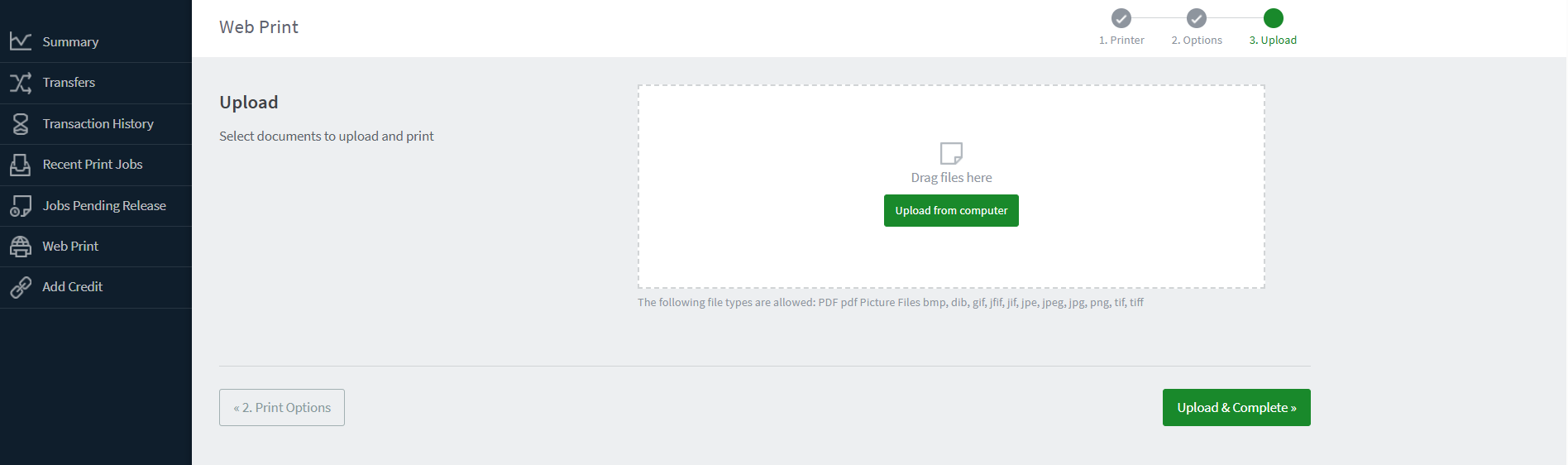
Accepted file types

Microsoft Excel
xlam, xls, xlsb, xlsm, xlsx, xltm, xltx

Microsoft PowerPoint
pot, potm, potx, ppam, pps, ppsm, ppsx, ppt, pptm, pptx

Microsoft Word
doc, docm, docx, dot, dotm, dotx, rtf, txt

PDF
pdf

Picture Files
bmp, dib, gif, jfif, jif, jpe, jpeg, jpg, png, tif, tiff

XPS
xps

  1. Log in to the Pay-Per-Print portal: mytruprint.tru.ca/user.
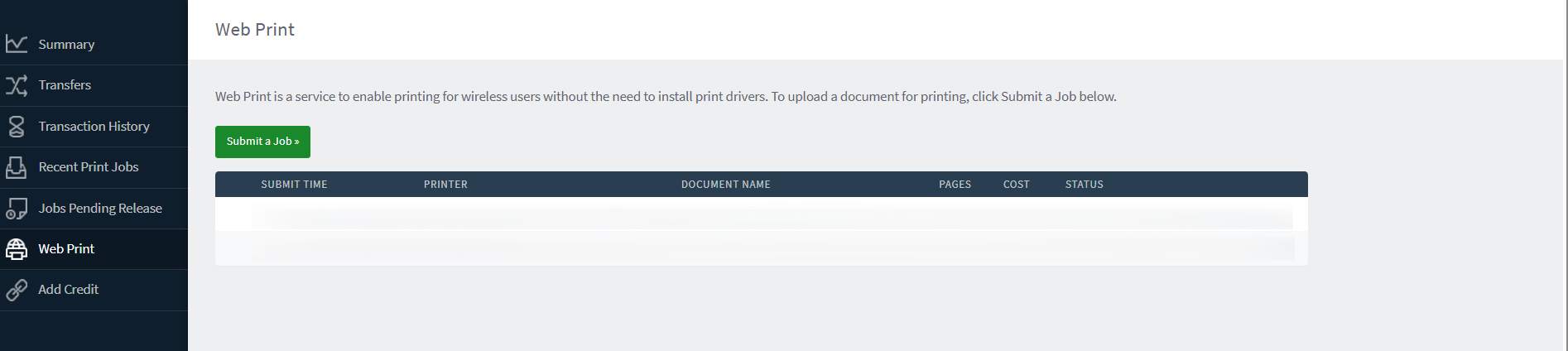
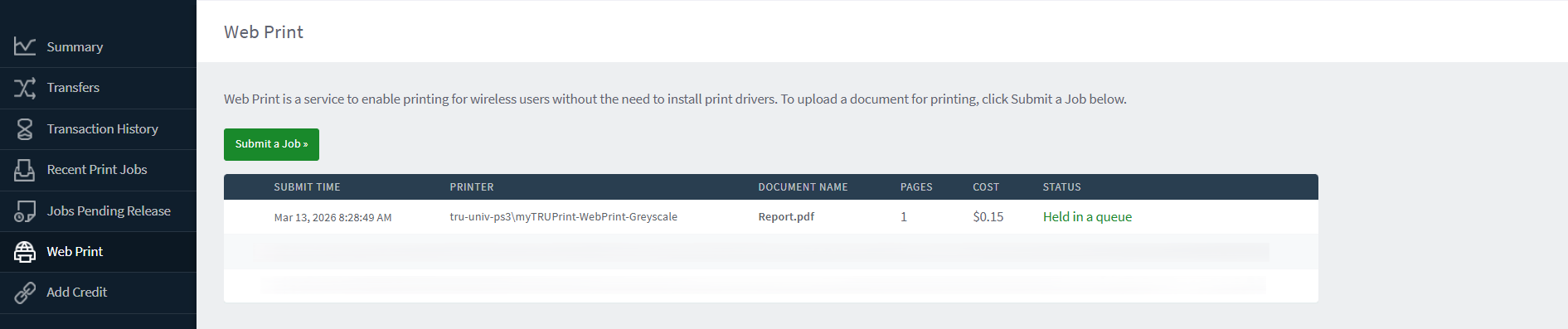
  2. Select Web Print in the navigation, then choose Submit a Job.
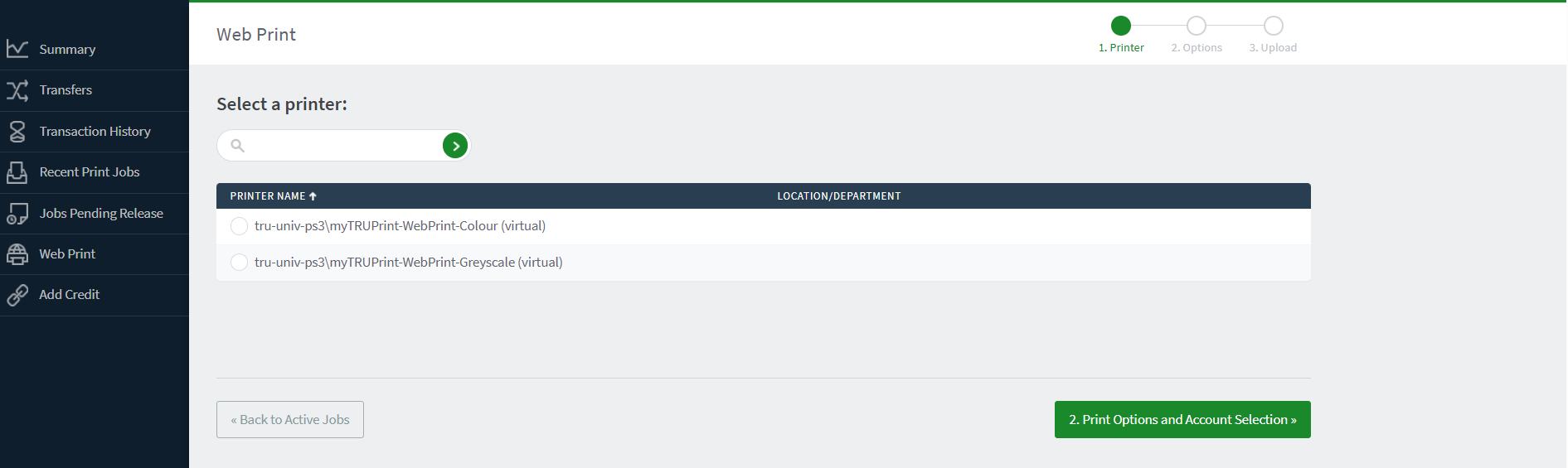
  3. Select a printer option:
    • Colour: tru-univ-ps3\myTRUPrint-WebPrint-Colour (virtual) — prints colour + duplex only.
    • Greyscale: tru-univ-ps3\myTRUPrint-WebPrint-Greyscale (virtual) — prints greyscale + duplex only.
      Advanced print options

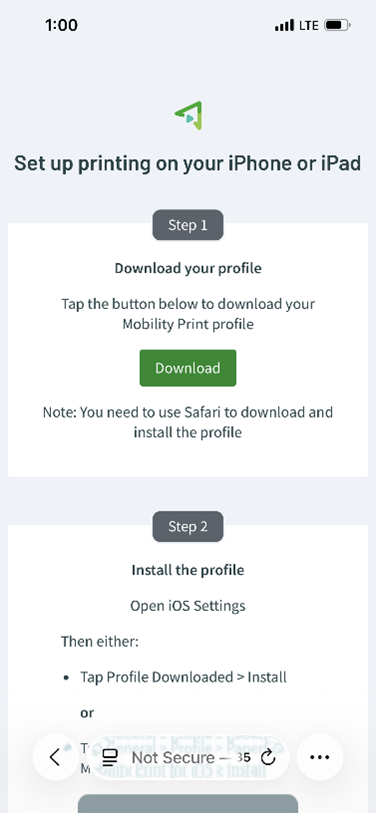
      If you are looking for advanced print finishing options (eg. single-sided, fit to page), log into a lab computer and print to the myTRUprint queue or see the instructions on how to use Mobility Print.

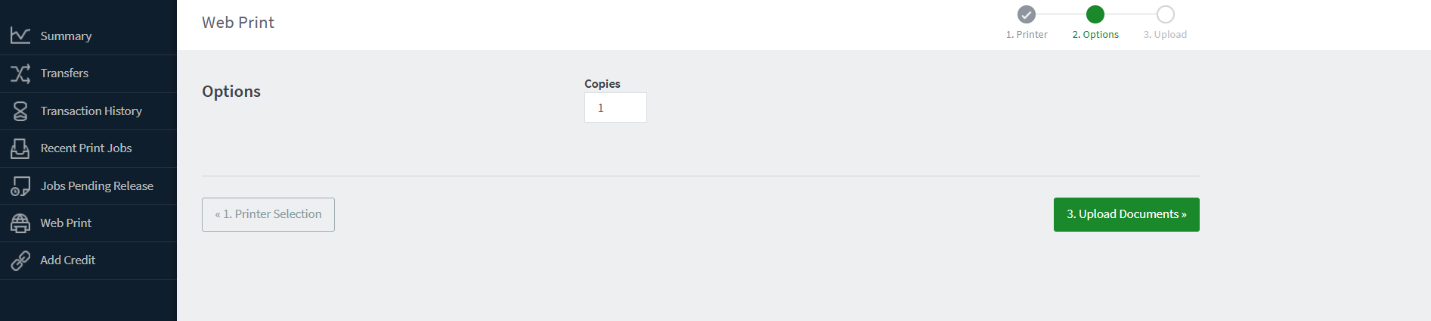
  4. Confirm the print name / account selection, select number of copies, and click Upload Document.
  5. Choose your file and click Upload & Complete.
  6. Your job is sent to the student print queue (a secure holding area until you authenticate at the printer).

    Note: The print queue is a secure, virtual holding area that stores your print job until you authenticate at the physical printer. The number in the queue equals the number of total jobs waiting to be released, it does not reflect waiting times of printing.


Release print job

  1. Go to any printer on campus.
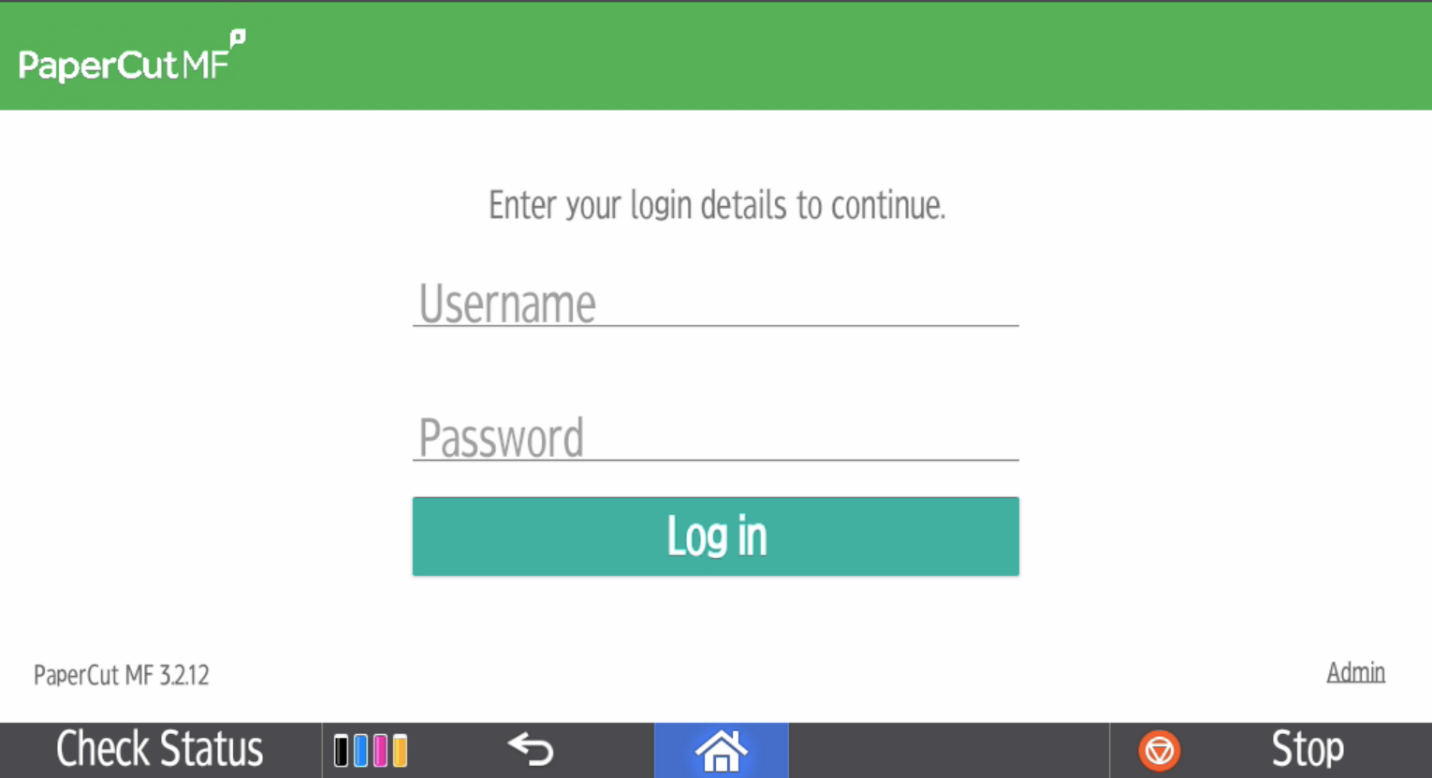
  2. Log in with your TID number and password.
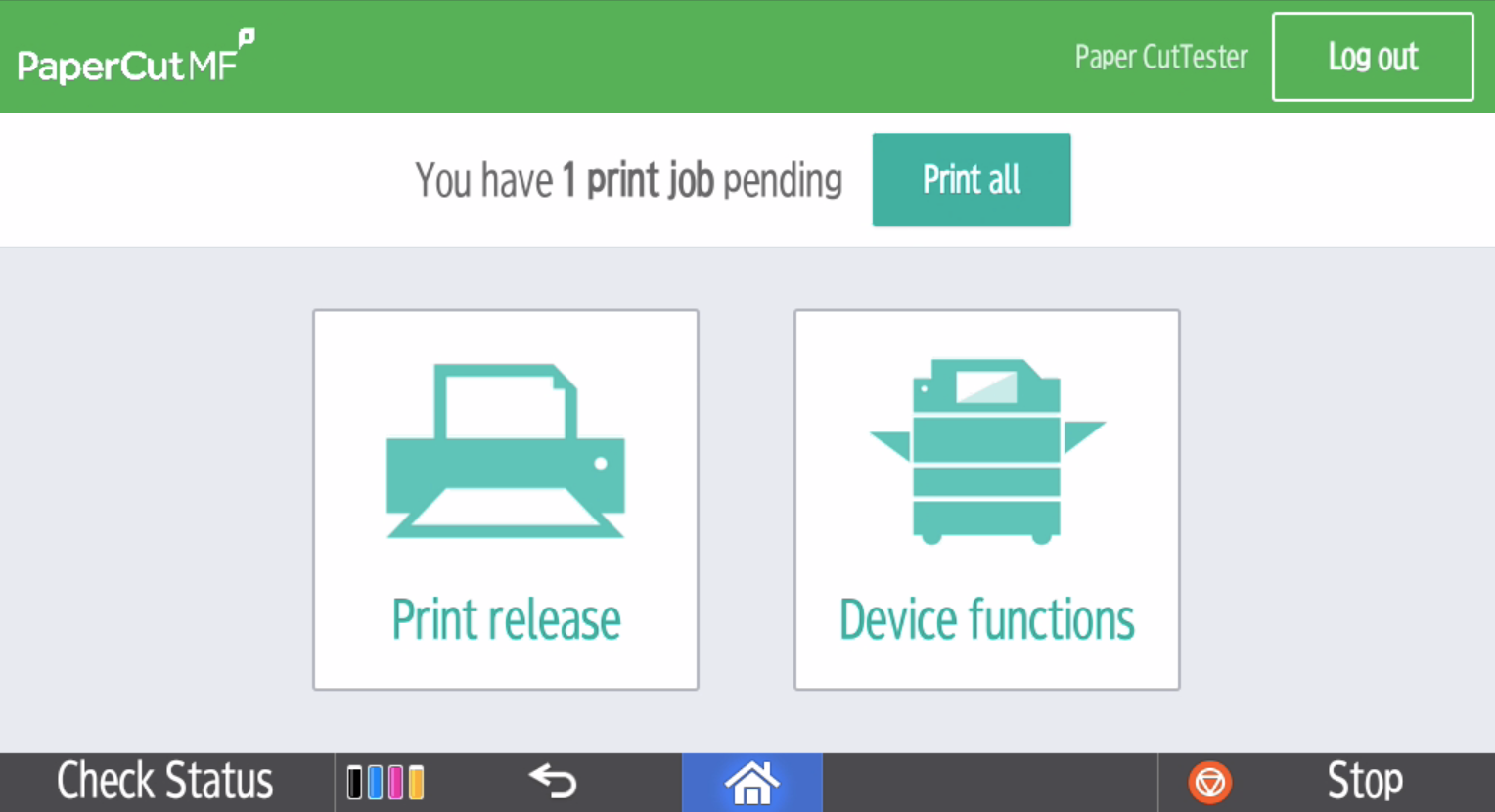
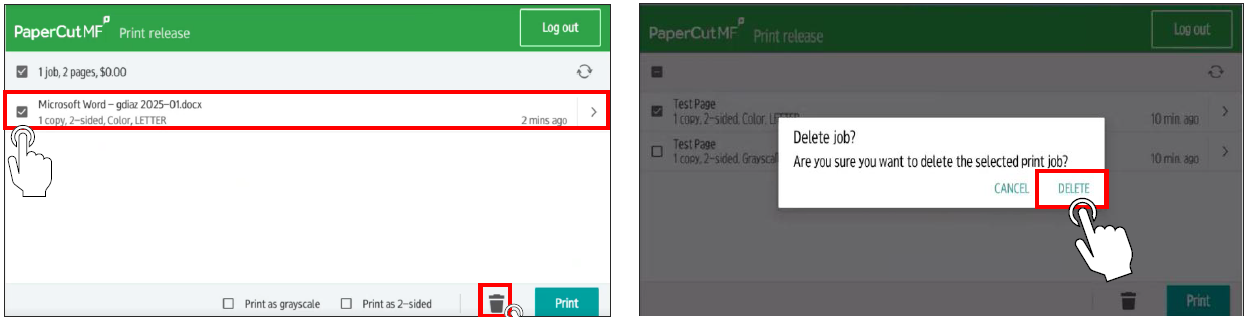
  3. Select Print Release (or Print all to release all pending jobs).
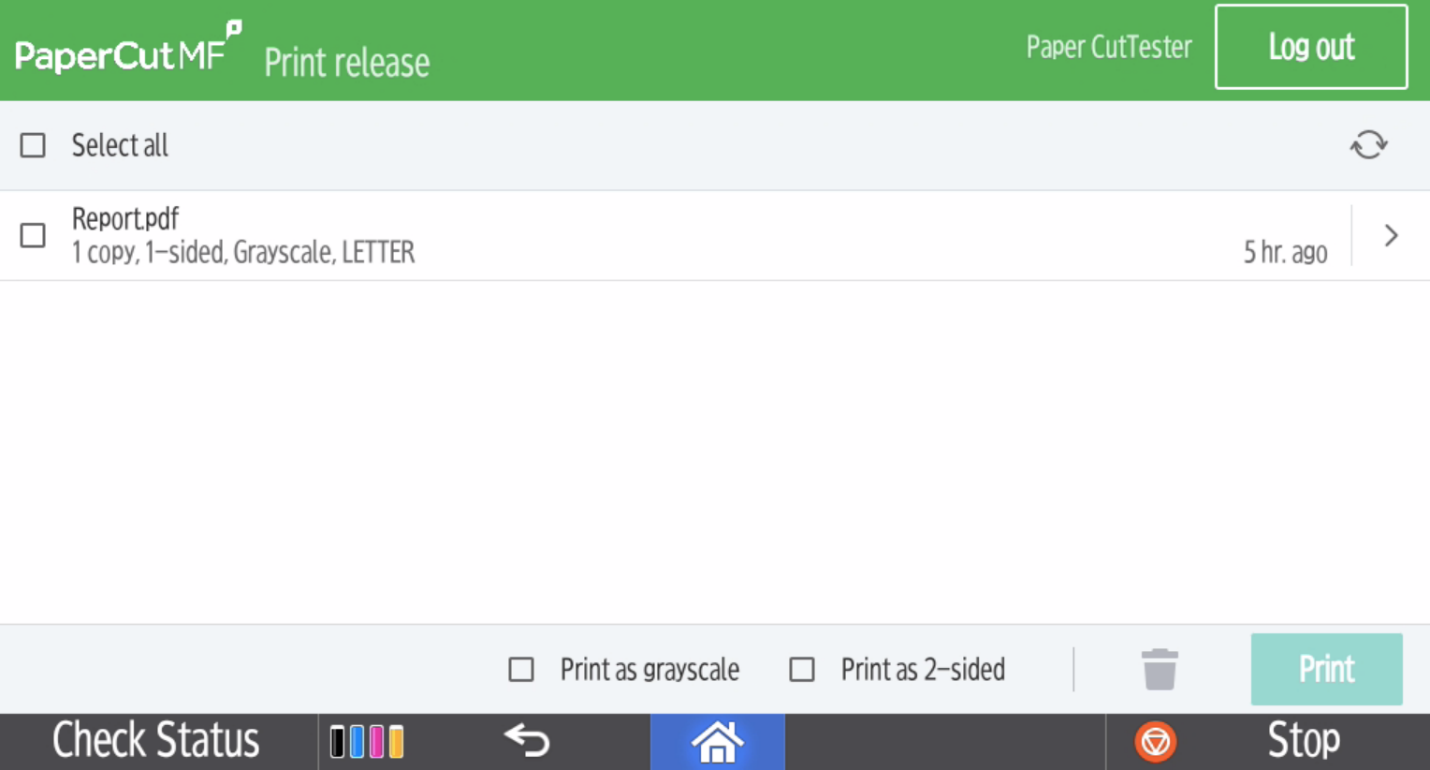
  4. If using Print Release, select the checkbox next to the job(s) you want, then tap Print.
  5. Always log out when finished (top-right).

Delete print job

  1. To delete a print job, select the print job(s) and press the trash icon. Press Delete to confirm.
  2. Always log out when finished (top-right).
Search To Top